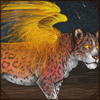
As of October 2017, the To Hell with Rabies event has its own storyline involving a multitude of mythical cryptids. The storyline begins with the introduction unlocking on October 1st at 12am Lioden time.
For ease of convenience, the novels and their branches have been split up into their own separate pages. Please click on the individual button images to be taken to that novel's page.
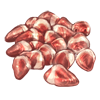
Once you have finished the introduction and chosen an NPC to align yourself with, you are able to complete daily quests in order to receive extra rewards. The rewards you receive depend upon the NPC you have chosen. Aligning with Heaven or Hell will only give you +2 Reputation for the side you've chosen, whereas Nirah will offer Blood Beetles, Impression, and Experience.
The daily quests reset upon rollover, and you can take another quest again the following day.
Daily quests are randomised from their relevant NPC's pool and will always offer the same rewards, though with Nirah, the amount of Blood Beetles and Impression you gain will be randomised to a degree. You can reset your quest and take a new one for a fee of 5  Blood Beetles.
Every quest that you complete with Heaven or Hell will give you +2 Reputation for the side you've chosen, as stated above. Once you reach 10 Reputation with Heaven or Hell, you unlock special bonuses starting on October 10th. If this date rolls around and you are not yet at 10 Reputation, you have the ability to continue to take daily quests to build up your Reputation. You will see a banner at the top of your page when you visit Heaven or Hell which informs you of how much Reputation you currently have, and whether you are trusted yet.
Storyline: Nephelines do not trust you fully yet to grant you an Angelic visitation. Gain more reputation, finish some more daily tasks, and try again later!
Storyline: The Demons do not respect you fully enough to bestow the whip to you. Gain more reputation, finish some more daily tasks, and try again later!
Heaven
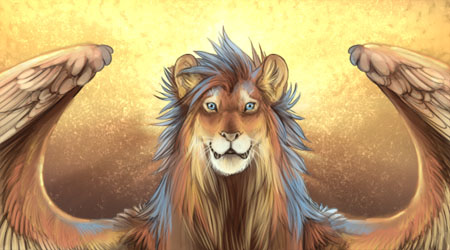
Aiatar has a few suggestions on what you can do today. These tasks will help make the world a better place and delay the possibility of the Apocalypse. For each good deed you do, the Demons will have to work twice as hard to undo it.
Collect 10 Demonic Scales
In order to complete this quest, you must gain a total of 10  Demonic Scales. This can be accomplished by either defeating or blessing demon NPCs in Explore. You can find a list of demon NPCs within the Heaven encounters section of this page.
Defeat 5 Demons
In order to complete this quest, you must win 5 total battles against any demon NPCs in Explore. You can find a list of demon NPCs within the Heaven encounters section of this page.
Gain 100 Karma
In order to complete this quest, you must gain a total of 100 karma after taking this quest. The easiest way to achieve this would be to hatch five Vulture Eggs, which would grant you +100 karma.
Win 15 Battles in Explore
In order to complete this quest, you must win 15 total battles against any NPCs in Explore.
Excellent work!
+2 Heaven Reputation
+2 to 3 Blood Beetles
+1 to 3% Impression
+(LVL x 10) Experience
The Nephelines celebrate your help and embroider their feathers into your mane.
Hell
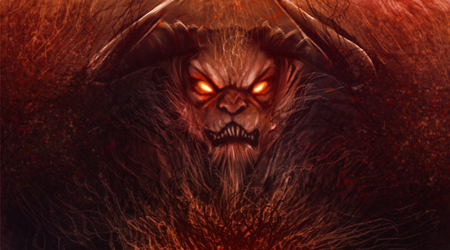
The Demons have a few suggestions on what you can do today. These tasks will help make the world a more suitable place for Demonic forces to spread their vile ways; for each deed you commit against the Angels, they will have to fight their own hurt pride to overcome it.
Collect 10 Nepheline Feathers
In order to complete this quest, you must gain a total of 10  Nepheline Feathers. This can be accomplished by either defeating or blessing angel NPCs in Explore. You can find a list of angel NPCs within the Hell encounters section of this page.
Defeat 5 Angels
In order to complete this quest, you must win 5 total battles against any angel NPCs in Explore. You can find a list of angel NPCs within the Hell encounters section of this page.
Lose 100 Karma
In order to complete this quest, you must lose a total of 100 karma after taking this quest. The easiest way to achieve this would be to eat five Vulture Eggs, which would grant you -100 karma.
Win 15 Battles in Explore
In order to complete this quest, you must win 15 total battles against any NPCs in Explore.
Well done.
+2 Hell Reputation
+2 to 3 Blood Beetles
+1 to 3% Impression
+(LVL x 10) Experience
The Demons celebrate your devotion and torture a human in your name.
Nirah
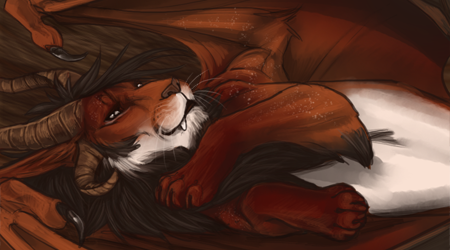
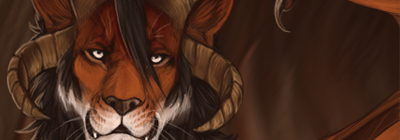
"Oh hey there, my dude. With all this hellfire commotion happening, I'd rather just burrow down in my den and avoid it all, honestly. But, I do have some things that need to be done even if I'd rather dodge all of this drama like Hell, heh. If you can help your new best friend out, then maybe I can give you some sort of..uh ..."compensation" for your hard work?"
Defeat 5 Rabid Animals
In order to complete this quest, you must win 5 total battles against any rabid NPCs in Explore. These NPCs are easy to spot, as they have the word "Rabid" within their NPC title. Battling rabid NPCs carries a risk of infecting your leader with rabies, whether you win or lose.
Defeat a Night Creature
In order to complete this quest, you must defeat an October-specific NPC that only shows up during nighttime. You can find a list of nighttime NPCs through the explore encounters section of the October event page—any NPCs with greyed out sun icons are NPCs that only show up in Explore during nighttime.
Gain 30 Karma
In order to complete this quest, you must gain a total of 30 karma after taking this quest. The easiest way to achieve this would be to hatch two Vulture Eggs, which would grant you +40 karma.
Lose 30 Karma
In order to complete this quest, you must lose a total of 30 karma after taking this quest. The easiest way to achieve this would be to eat two Vulture Eggs, which would grant you -40 karma.
Win 5 Battles
In order to complete this quest, you must win 5 total battles against any NPCs in Explore.
Win a PVP Fight
In order to proceed with this, you must attack another player's pride leader via PVP and win. The PVP section can be found on any player's den page under the "Attack This Lion" section. Make sure you pay attention to your opponent's stats, and remember that you can only attack lions that are up to two levels below you—but there is no limit to how much higher of a level they can be compared to you.
Nice work, my dude. Maybe we could do that again tomorrow. We should hang out later though! I wouldn't mind getting to know you even more. Here, take these:
+3 to 5 Blood Beetles
+1 to 3% Impression
+(LVL x 10) Experience
"You're done my dude!"
Any Alignment
These encounters will appear regardless of whether you're aligned with Heaven, Hell, or Nirah.
|
|
| You have found a bloodied Nepheline Feather lying on the ground!
|
| +1 Nepheline Feather |
| NOTE: This encounter does not require you to do any actions, or press any buttons. You will only come across this encounter if you are aligned with Hell or Nirah.
|
|
|
| You have found a sizzling Demonic Scale lying on the ground!
|
| +1 Demonic Scale |
| NOTE: This encounter does not require you to do any actions, or press any buttons. You will only come across this encounter if you are aligned with Heaven or Nirah.
|
Heaven
These encounters will only appear if you are aligned with Heaven.
The option to "Bless!" only appears if you have Angelic Wings equipped. Angelic Wings can be unlocked starting on October 10th if your Heaven Reputation is high enough.
When you have Angelic Wings equipped, your Explore page will look a bit different. You will have an additional option to "Bless!" certain creatures you come across.
| Angelic Wings
|
|
|
| Action |
Result |
Reward |
| Bless! |
A warmth fills you and a dazzling light flashes before your eyes as you bless this poor creature. |
+15 Karma |
| +1 Demonic Scale |
| +50 Experience |
| +1 Heaven Reputation |
|
|
| A Banshee's shriek sends chills down your spine. Her laments warn you about the upcoming death.
|
| Action |
Result |
Reward |
| Attack! |
Initiates a battle with a Banshee. |
+2 Blood Beetles and +1 Demonic Scale if the battle is won. |
|
|
| A foul demonic beast is murdering every living creature it meets!
|
| Action |
Result |
Reward |
| Attack! |
Initiates a battle with a Demonic Beast. |
+2 Blood Beetles and +1 Demonic Scale if the battle is won. |
|
|
| A feral Lamia is watching you with piercing eyes that never close. She’s drawing out a shriek that makes you dizzy.
|
| Action |
Result |
Reward |
| Attack! |
Initiates a battle with a Lamia. |
+2 Blood Beetles and +1 Demonic Scale if the battle is won. |
|
|
| A freaky Rabisu has ambushed you, hellbent on dragging you down to the Desert of Anguish!
|
| Action |
Result |
Reward |
| Attack! |
Initiates a battle with a Rabisu. |
+2 Blood Beetles and +1 Demonic Scale if the battle is won. |
|
|
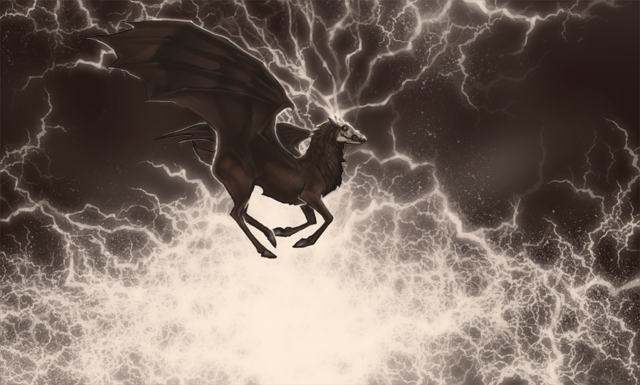
| A terrifying thunder hits the ground as a majestic demon named Furfur makes his appearance to wander the lands and corrupt animals to join the demonic forces. A lightning storm blasts around the creature, making it impossible to come near.
|
+1 Shard of Evil
 |
| NOTE: This encounter does not require you to do any actions, or press any buttons.
|
|
|
| An infernal Hellhound is patrolling this area!
|
| Action |
Result |
Reward |
| Attack! |
Initiates a battle with a Hellhound. |
+2 Blood Beetles and +1 Demonic Scale if the battle is won. |
|
|
| An unholy Chort is lurking in the shadows!
|
| Action |
Result |
Reward |
| Attack! |
Initiates a battle with a Chort. |
+2 Blood Beetles and +1 Demonic Scale if the battle is won. |
|
|
| Buffalo demoness Mahishi is charging towards you!
|
| Action |
Result |
Reward |
| Attack! |
Initiates a battle with a Mahishi. |
+2 Blood Beetles and +1 Demonic Scale if the battle is won. |
|
|
| Demonic Naamah is ready to seduce some locals. You might stop a new generation of demons by sending her back from where she came from!
|
| Action |
Result |
Reward |
| Attack! |
Initiates a battle with a Naamah. |
+2 Blood Beetles and +1 Demonic Scale if the battle is won. |
|
|
| Looks like this three-headed cerberus will guard the underworld from your nosy muzzle!
|
| Action |
Result |
Reward |
| Attack! |
Initiates a battle with a Cerberus. |
+2 Blood Beetles and +1 Demonic Scale if the battle is won. |
|
|
| Monstrous Balaur is ready to stop you!
|
| Action |
Result |
Reward |
| Attack! |
Initiates a battle with a Balaur. |
+2 Blood Beetles and +1 Demonic Scale if the battle is won. |
|
|
| Monstrous Typhon is killing every creature in its path!
|
| Action |
Result |
Reward |
| Attack! |
Initiates a battle with a Typhon. |
+2 Blood Beetles and +1 Demonic Scale if the battle is won. |
|
|
| Mythical beast Peluda crawled out of water to bring destruction to your lands!
|
| Action |
Result |
Reward |
| Attack! |
Initiates a battle with a Peluda. |
+2 Blood Beetles and +1 Demonic Scale if the battle is won. |
|
|
| Oh no! It's a Harpy!
|
| Action |
Result |
Reward |
| Attack! |
Initiates a battle with a Harpy. |
+2 Blood Beetles and +1 Demonic Scale if the battle is won. |
|
|
| Oh no! It's a Tatzelwurm!
|
| Action |
Result |
Reward |
| Attack! |
Initiates a battle with a Tatzelwurm. |
+2 Blood Beetles and +1 Demonic Scale if the battle is won. |
|
|
| Powerful demonic prince Beelzebub wants to end you!
|
| Action |
Result |
Reward |
| Attack! |
Initiates a battle with a Beelzebub. |
+2 Blood Beetles and +1 Demonic Scale if the battle is won. |
|
|
| Shape-shifting Alukah is trying to leech blood out of animals in your lands!
|
| Action |
Result |
Reward |
| Attack! |
Initiates a battle with a Alukah. |
+2 Blood Beetles and +1 Demonic Scale if the battle is won. |
|
|
| Sharabha is checking you out, wondering if it will be easy to devour you. You must resemble Narasimha, the lion avatar!
|
| Action |
Result |
Reward |
| Attack! |
Initiates a battle with a Sharabha. |
+2 Blood Beetles and +1 Demonic Scale if the battle is won. |
|
|
| Sitri, a vicious demon, has manifested in front of you to smite you!
|
| Action |
Result |
Reward |
| Attack! |
Initiates a battle with a Sitri. |
+2 Blood Beetles and +1 Demonic Scale if the battle is won. |
|
|
| The fallen angel Marchosias, in the form of a winged wolf, is spitting fire at everyone who dares to approach!
|
| Action |
Result |
Reward |
| Attack! |
Initiates a battle with a Marchosias. |
+2 Blood Beetles and +1 Demonic Scale if the battle is won. |
|
|
| The fallen angel Moloch is training for the epic battle! He craves the blood of innocents.
|
| Action |
Result |
Reward |
| Attack! |
Initiates a battle with a Moloch. |
+2 Blood Beetles and +1 Demonic Scale if the battle is won. |
|
|
| The old witch Rangda, pursued by Barong, has arrived here to devour your cubs!
|
| Action |
Result |
Reward |
| Attack! |
Initiates a battle with a Rangda. |
+2 Blood Beetles and +1 Demonic Scale if the battle is won. |
|
|
| The vicious and unstoppable Nemean Lion is wreaking havoc on these lands.
|
| Action |
Result |
Reward |
| Attack! |
Initiates a battle with a Nemean Lion. |
+2 Blood Beetles and +1 Demonic Scale if the battle is won. |
|
|
| This big Basilisk will stun you and eat you if you don't do something!
|
| Action |
Result |
Reward |
| Attack! |
Initiates a battle with a Basilisk. |
+2 Blood Beetles and +1 Demonic Scale if the battle is won. |
|
|
| This creature might have some delicious-looking donkey legs, but you're here to unveil her deceptions!
|
| Action |
Result |
Reward |
| Attack! |
Initiates a battle with an Onoskelis. |
+2 Blood Beetles and +1 Demonic Scale if the battle is won. |
|
|
| This deformed creature is called Bahkauv, a sign of horrific burdens to come.
|
| Action |
Result |
Reward |
| Attack! |
Initiates a battle with a Bahkauv. |
+2 Blood Beetles and +1 Demonic Scale if the battle is won. |
|
|
| This disgusting Psoglav is looking for bodies to consume!
|
| Action |
Result |
Reward |
| Attack! |
Initiates a battle with a Psoglav. |
+2 Blood Beetles and +1 Demonic Scale if the battle is won. |
|
|
| This goat-looking demon, Ghaddar, is ready to end the patriarchy of lions by removing their scrotums!
|
| Action |
Result |
Reward |
| Attack! |
Initiates a battle with a Ghaddar. |
+2 Blood Beetles and +1 Demonic Scale if the battle is won. |
|
|
| This horrible sea monster is crawling on land, ready to start the apocalypse!
|
| Action |
Result |
Reward |
| Attack! |
Initiates a battle with a Tannin. |
+2 Blood Beetles and +1 Demonic Scale if the battle is won. |
|
|
| This massive dragon-like Cockatrice might kill you with its gaze!
|
| Action |
Result |
Reward |
| Attack! |
Initiates a battle with a Cockatrice. |
+2 Blood Beetles and +1 Demonic Scale if the battle is won. |
|
|
| This Primal-like Rakshasa has wandered a long way to drink the blood of exotic creatures!
|
| Action |
Result |
Reward |
| Attack! |
Initiates a battle with a Rakshasa. |
+2 Blood Beetles and +1 Demonic Scale if the battle is won. |
|
|
| This scary-looking ancient demon Marax is seizing your mind with his otherworldly powers!
|
| Action |
Result |
Reward |
| Attack! |
Initiates a battle with a Marax. |
+2 Blood Beetles and +1 Demonic Scale if the battle is won. |
|
|
| This shape-shifting devil Ördög is trying to ambush a Nepheline!
|
| Action |
Result |
Reward |
| Attack! |
Initiates a battle with an Ördög. |
+2 Blood Beetles and +1 Demonic Scale if the battle is won. |
Hell
These encounters will only appear if you are aligned with Hell.
The option to "Bind!" only appears if you have the Demonic Whip equipped. The Demonic Whip can be unlocked starting on October 10th if your Hell Reputation is high enough.
When you have the Demonic Whip equipped, your Explore page will look a bit different. You will have an additional option to "Bind!" certain creatures you come across.
| Demonic Whip
|
|
|
| Action |
Result |
Reward |
| Bind! |
An overwhelming rush of power courses through your body as you bind this wretched soul. |
-15 Karma |
| +1 Nepheline Feather |
| +50 Experience |
| +1 Hell Reputation |
|
|
| A bright light is blessing the lands and cleansing them from the forces of Hell. You roar, feeling pain in your eyes. As you wince, you notice a six-winged creature high up in the sky. The ground under you begins to crumble, as if the evil is crystallizing to break apart.
|
+1 Shard of Evil
|
| NOTE: This encounter does not require you to do any actions, or press any buttons.
|
|
|
| A Cherubim in its Lamassu form takes little effort to defeat legions of small demonic creatures.
|
| Action |
Result |
Reward |
| Attack! |
Initiates a battle with a Cherubim. |
+2 Blood Beetles and +1 Nepheline Feather if the battle is won. |
|
|
| A graceful pegasus is patrolling this territory, keeping all demonic beings away!
|
| Action |
Result |
Reward |
| Attack! |
Initiates a battle with a Pegasus. |
+2 Blood Beetles and +1 Nepheline Feather if the battle is won. |
|
|
| A magical Kirin has arrived from eastern woodlands to purify the evil creatures gathering in these lands.
|
| Action |
Result |
Reward |
| Attack! |
Initiates a battle with a Kirin. |
+2 Blood Beetles and +1 Nepheline Feather if the battle is won. |
|
|
| A magnificent Peryton is defending this territory from your filth!
|
| Action |
Result |
Reward |
| Attack! |
Initiates a battle with a Peryton. |
+2 Blood Beetles and +1 Nepheline Feather if the battle is won. |
|
|
| A Nepheline named Aiatar is flying nearby, doing low-level reconnaissance.
|
| Action |
Result |
Reward |
| Attack! |
Initiates a battle with Aiatar. |
+2 Blood Beetles and +1 Nepheline Feather if the battle is won. |
|
|
| A young Nepheline, offspring of Angels and Lions, is cleansing the lands from the demonic forces.
|
| Action |
Result |
Reward |
| Attack! |
Initiates a battle with a Young Nepheline. |
+2 Blood Beetles and +1 Nepheline Feather if the battle is won. |
|
|
| An angelic being of death, Dumah, is phasing onto Earth and blinking at you with its thousand glowing, judging eyes.
|
| Action |
Result |
Reward |
| Attack! |
Initiates a battle with a Dumah. |
+2 Blood Beetles and +1 Nepheline Feather if the battle is won. |
|
|
| Ancient god of death Nergal is ready to help you pass to the other side. By force.
|
| Action |
Result |
Reward |
| Attack! |
Initiates a battle with a Nergal. |
+2 Blood Beetles and +1 Nepheline Feather if the battle is won. |
|
|
| Angel Maalik, surrounded by fire, is purging all demons flowing out of a Portal to Hell.
|
| Action |
Result |
Reward |
| Attack! |
Initiates a battle with a Maalik. |
+2 Blood Beetles and +1 Nepheline Feather if the battle is won. |
|
|
| Ariel, the Lion of Heaven, is smiting all evil beings and bringing redemption to the land!
|
| Action |
Result |
Reward |
| Attack! |
Initiates a battle with an Ariel. |
+2 Blood Beetles and +1 Nepheline Feather if the battle is won. |
|
|
| Barong has travelled from far-away lands to participate in the upcoming battle of Good and Evil. You recognise lion-like features in him.
|
| Action |
Result |
Reward |
| Attack! |
Initiates a battle with a Barong. |
+2 Blood Beetles and +1 Nepheline Feather if the battle is won. |
|
|
| Beastly Minoan Genius is bringing back prosperity to these lands. Are you going to do something about it?
|
| Action |
Result |
Reward |
| Attack! |
Initiates a battle with a Minoan Genius. |
+2 Blood Beetles and +1 Nepheline Feather if the battle is won. |
|
|
| Behold! Talos, the automaton guardian, will not let you cross this path!
|
| Action |
Result |
Reward |
| Attack! |
Initiates a battle with a Guarding Talos. |
+2 Blood Beetles and +1 Nepheline Feather if the battle is won. |
|
|
| Haizum, the horse of the archangels, is ready to stop you in your tracks!
|
| Action |
Result |
Reward |
| Attack! |
Initiates a battle with a Haizum. |
+2 Blood Beetles and +1 Nepheline Feather if the battle is won. |
|
|
| Incredibly strong Gandaberunda bird is standing in your way!
|
| Action |
Result |
Reward |
| Attack! |
Initiates a battle with a Gandaberunda. |
+2 Blood Beetles and +1 Nepheline Feather if the battle is won. |
|
|
| Looks like the shimmering Buraq steed is trying to trample evil beings like you!
|
| Action |
Result |
Reward |
| Attack! |
Initiates a battle with a Buraq. |
+2 Blood Beetles and +1 Nepheline Feather if the battle is won. |
|
|
| Narasimha is here to conquer beings that claim they cannot be defeated. Prepare to fight for your life!
|
| Action |
Result |
Reward |
| Attack! |
Initiates a battle with a Narasimha. |
+2 Blood Beetles and +1 Nepheline Feather if the battle is won. |
|
|
| Oh no! It's a Fenghuang!
|
| Action |
Result |
Reward |
| Attack! |
Initiates a battle with a Fenghuang. |
+2 Blood Beetles and +1 Nepheline Feather if the battle is won. |
|
|
| Oh no! It's a Yali!
|
| Action |
Result |
Reward |
| Attack! |
Initiates a battle with a Yali. |
+2 Blood Beetles and +1 Nepheline Feather if the battle is won. |
|
|
| Oh no! The ancient Cernunnos has arrived to protect innocent animals from your evil deeds!
|
| Action |
Result |
Reward |
| Attack! |
Initiates a battle with a Cernunnos. |
+2 Blood Beetles and +1 Nepheline Feather if the battle is won. |
|
|
| Stop! It's the Enochian angelic hydra Chalkydri, ready to bite your head off!
|
| Action |
Result |
Reward |
| Attack! |
Initiates a battle with a Chalkydri. |
+2 Blood Beetles and +1 Nepheline Feather if the battle is won. |
|
|
| The angel of the night, Lailah, has descended to stop your destructive ways!
|
| Action |
Result |
Reward |
| Attack! |
Initiates a battle with a Lailah. |
+2 Blood Beetles and +1 Nepheline Feather if the battle is won. |
|
|
| The elder deity Okó is sending a swarm of bees towards you! He will fight your evil sorceries!
|
| Action |
Result |
Reward |
| Attack! |
Initiates a battle with an Okó. |
+2 Blood Beetles and +1 Nepheline Feather if the battle is won. |
|
|
| This ancient guardian angel, Genius, will protect nearby creatures from you!
|
| Action |
Result |
Reward |
| Attack! |
Initiates a battle with a Genius. |
+2 Blood Beetles and +1 Nepheline Feather if the battle is won. |
|
|
| This colourful Simurgh is hunting down and devouring sinful beings!
|
| Action |
Result |
Reward |
| Attack! |
Initiates a battle with a Simurgh. |
+2 Blood Beetles and +1 Nepheline Feather if the battle is won. |
|
|
| This Gamayun is spreading divine words to all creatures nearby!
|
| Action |
Result |
Reward |
| Attack! |
Initiates a battle with a Gamayun. |
+2 Blood Beetles and +1 Nepheline Feather if the battle is won. |
|
|
| This Mesopotamian goddess of war does not fear any rebelling lion. Prepare to fight!
|
| Action |
Result |
Reward |
| Attack! |
Initiates a battle with an Inanna. |
+2 Blood Beetles and +1 Nepheline Feather if the battle is won. |
|
|
| This winged Vanth arrived to ensure their presence during the good creatures' last moments of life, and to help guide the spirits of those who lost their lives by the hands of pure evil.
|
| Action |
Result |
Reward |
| Attack! |
Initiates a battle with a Vanth. |
+2 Blood Beetles and +1 Nepheline Feather if the battle is won. |
|
|
| Turkish Konrul is ready to defend all life!
|
| Action |
Result |
Reward |
| Attack! |
Initiates a battle with a Konrul. |
+2 Blood Beetles and +1 Nepheline Feather if the battle is won. |
|
|
| Ugallu has descended from the heavy clouds forming above you to make the world a better place under the command of his divine master.
|
| Action |
Result |
Reward |
| Attack! |
Initiates a battle with an Ugallu. |
+2 Blood Beetles and +1 Nepheline Feather if the battle is won. |
|
|
| Watch out! The wise Chiron centaur is ready to smite evil creatures like you!
|
| Action |
Result |
Reward |
| Attack! |
Initiates a battle with a Chiron. |
+2 Blood Beetles and +1 Nepheline Feather if the battle is won. |
|
|
| Whoah! This freaky Monoceros beast is ready to impale you with its horn!
|
| Action |
Result |
Reward |
| Attack! |
Initiates a battle with a Monoceros. |
+2 Blood Beetles and +1 Nepheline Feather if the battle is won. |
Heaven Shop
The Heaven Shop is where you go to spend your Demonic Scales.
This shop can only be accessed if you are aligned with Heaven for the October storyline. In case you try to use the shop via a bookmark or a direct link and you are not aligned with Heaven, you will be redirected to the following error message:
You shouldn't be here, mortal.
Return to the hole from which you crawled out of.
Reputation Rewards
You can unlock rewards based on how much Heaven Reputation you have accumulated.
Heaven Reputation is earned by blessing NPCs in Explore and completing Heaven quests.
All "Reputation Required" rewards can be unlocked once per year per account. The ability to unlock these rewards is reset each year.
| Rep. Required |
Reward |
| 20 |
"Angelic" Title |
| 40 |
"Blessed" Title |
| 60 |
"Holy" Title |
| 100 |
50 Blood Beetles |
| 150 |
1 x Energy Boost item |
| 200 |
20  Monkey Teeth Monkey Teeth |
You are also able to purchase a 50% Energy Boost for 20 Demonic Scales. There is no limit to how many times you can purchase this reward. This will immediately fill your energy by +50%. You are unable to purchase this if you have more than 50% Energy at the time of trying to buy the reward.
Oblivion
You may return to the mortal realm and visit Nirah. You may only reopen the portal to this place, you will not be able to switch over to the other side.
Reopening the portal will cost 50 amusement items again, so please make this choice carefully. Active Wings will be disabled while you visit Nirah.
Purchase (100 Blood Beetles)
For 100 Blood Beetles, you can purchase Oblivion. This will take you back to being aligned with Nirah, although you can always open the portal back to Heaven after giving Nirah 50 amusement items. Your storyline progress does not reset, and you cannot switch sides to Hell. You can switch back and forth between Heaven and Nirah as many times as you like, although you will need to pay 100 Blood Beetles and 50 amusement items each time.
Hell Shop
The Hell Shop is where you go to spend your Nepheline Feathers.
This shop can only be accessed if you are aligned with Hell for the October storyline. In case you try to use the shop via a bookmark or a direct link and you are not aligned with Hell, you will be redirected to the following error message:
NO HEAVEN BABIES HERE.
GET OUT.
Reputation Rewards
You can unlock rewards based on how much Hell Reputation you have accumulated.
Hell Reputation is earned by binding NPCs in Explore and completing Hell quests.
All "Reputation Required" rewards can be unlocked once per year per account. The ability to unlock these rewards is reset each year.
| Rep. Required |
Reward |
| 20 |
"Demonic" Title |
| 40 |
"Cursed" Title |
| 60 |
"Unholy" Title |
| 100 |
50 Blood Beetles |
| 150 |
1 x Energy Boost item |
| 200 |
20 Monkey Teeth |
You are also able to purchase a 50% Energy Boost for 20 Nepheline Feathers. There is no limit to how many times you can purchase this reward. This will immediately fill your energy by +50%. You are unable to purchase this if you have more than 50% Energy at the time of trying to buy the reward.
Oblivion
You may return to the mortal realm and visit Nirah. You may only reopen the portal to this place, you will not be able to switch over to the other side.
Reopening the portal will cost 50 amusement items again, so please make this choice carefully. Active Wings will be disabled while you visit Nirah.
Purchase (100 Blood Beetles)
For 100 Blood Beetles, you can purchase Oblivion. This will take you back to being aligned with Nirah, although you can always open the portal back to Hell after giving Nirah 50 amusement items. Your storyline progress does not reset, and you cannot switch sides to Heaven. You can switch back and forth between Hell and Nirah as many times as you like, although you will need to pay 100 Blood Beetles and 50 amusement items each time.
Manticore Shop
Nirah
"Your life can't fall apart if you never had it together in the first place."
"Together, we could build an empire."
"I wouldn't mind sharing my cave with you for the night."
"Welcome to the end of eras, my dude."
"NO, I don't want to join your cult! Oh! Sorry I thought you were one of those demon messengers again."
"You're cool and all, my dude, but give a lion some privacy sometimes."
"...What? Sorry my dude, I just got lost in your eyes for a second."
"Forget those creatures outside, you're the real angel here my dude."
"What do you call it when a demon laughs? A Chort-le... Yeah that was bad."
"I'm so many levels of irony deep that I forgot what humor is."
"I hope the Heavens aren't mad that I stole away one of their angels, my dude."
"I'm not afraid to keep on living and walk this world alone."
"So, Nepheline are the offspring of Angels and lions. What's the offspring of a manticore and a lion? ...Wanna find out?"
"The night is dark and full of terrors."
"It's a messed up world, my dude. But life is a two-player game."
"What's brown and all over a demon? Furfur! Wait, no don't leave me, my dude-"